

AmpereFlow Battery Charging App Review: Test Real Wattage, Cables, and Battery Health
Have you ever plugged your phone into a high-wattage fast charger, only to find that an hour later the battery percentage has barely moved? The lightning bolt icon appears in the status bar, but your phone charges at a snail’s pace.
Is the wall adapter faulty, is the USB cable damaged, or is your battery degrading? Guessing rarely solves charging issues. This is where the AmpereFlow Battery Charging app comes in. Instead of relying on vague system icons, AmpereFlow exposes the underlying hardware data on your screen so you can see exactly what happens while your device is plugged in.
This comprehensive guide covers how AmpereFlow works, breaks down its core diagnostic features, and demonstrates how to use its data to protect long-term battery health.
What Is AmpereFlow?
AmpereFlow is a dedicated battery diagnostics and charging monitor for Android. Think of it as a pocket digital multimeter paired with a battery health log.
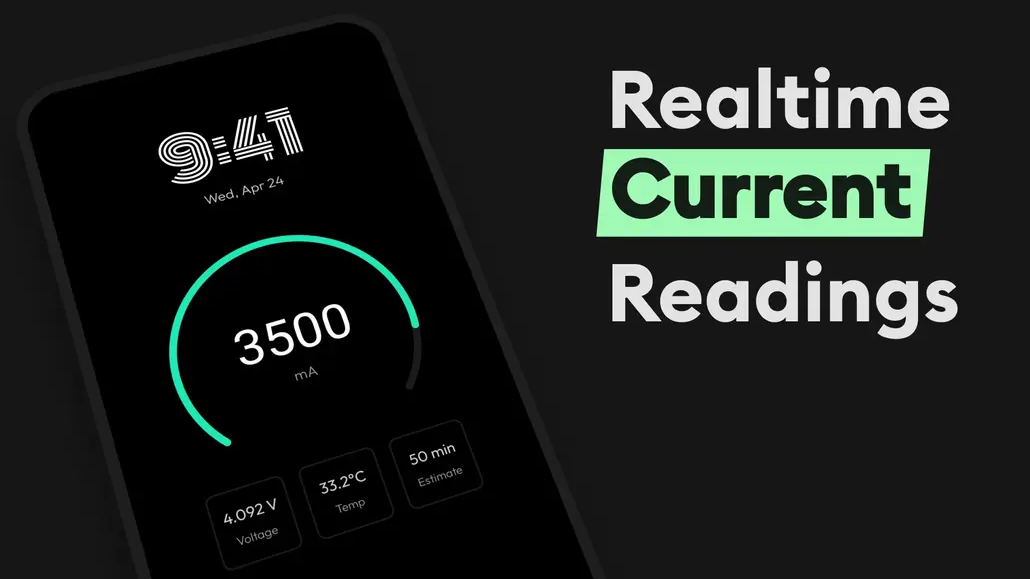
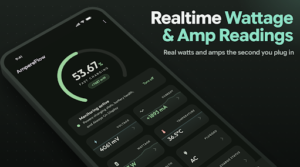
The moment you connect a charger, AmpereFlow reads power delivery sensors to display live charging speed in watts ($W$), current in milliamps ($mA$), voltage ($V$), and temperature ($°C$). Because different smartphone manufacturers calculate current and voltage using varying internal scales, AmpereFlow applies device-aware corrections to provide stable, normalized readings instead of erratic raw figures.
Key Features of AmpereFlow
The app focuses on practical utility, helping users diagnose charging bottlenecks and track hardware wear over time.
1. Live Charging Speed & Watt Meter
A fast-charging notification on your lock screen does not guarantee peak speed.
Real-Time Power: View live current flow ($mA$) alongside estimated wattage ($W$).
Protocol Detection: Verify whether your device is drawing standard charging speeds, USB-PD/proprietary fast charging, or trickle charging rates.
2. Cable and Adapter Benchmarking
Damaged cables often drop voltage or limit current without triggering a system error. AmpereFlow acts as an effective cable tester:
Plug your phone into an adapter using Cable A, note the wattage.
Swap in Cable B on the same adapter and compare the numbers.
Identify worn cables that bottleneck charging to 5W or less and discard them.
3. Estimated Battery Health & Capacity Tracking
Android settings rarely provide granular battery degradation metrics out of the box.
Capacity Loss: AmpereFlow calculates estimated health scores and remaining capacity based on recorded charging sessions.
Scrollable Health Graph: Rather than relying on a single fluctuating estimate, inspect your battery’s degradation curve over weeks and months.
4. Smart Time-to-Charge Predictions
Charging lithium-ion batteries up to 80% on a regular basis reduces stress on internal cells.
AmpereFlow calculates the estimated time remaining until your battery reaches 80%.
It also provides a separate countdown timer for reaching a full 100% charge.
5. AMOLED Always-On Display (AOD)
Checking your battery status repeatedly turns the display on and generates extra heat.
AmpereFlow includes an AMOLED-friendly black screen mode (#000000 background).
Keep key metrics visible—such as a speedometer-style power gauge, temperature, and current—without draining power or risking screen burn-in.
Understanding the Charging Curve
Many users assume a 65W charger delivers a flat 65W from zero to full. In reality, modern smartphones adjust their charging speeds dynamically:
[0% - 50%]  --> Peak Power Stage (Maximum rated wattage, fastest intake)
[50% - 80%] --> Thermal Regulation Stage (Power steps down as battery warms)
[80% - 100%] --> Trickle Charge Stage (Power drops to 2W–5W to protect cells)
Peak Intake (0% to 50%): The battery management system (BMS) accepts maximum power. AmpereFlow shows its highest wattage during this phase.
Thermal Stepping (50% to 80%): Internal resistance builds heat. The phone reduces current to protect internal components.
Trickle Charging (80% to 100%): Power delivery drops significantly to prevent over-saturation and chemical degradation.
AmpereFlow’s Detailed History Graphs and Session Replay plot this exact progression. You can review past sessions to see precisely when current throttled and how hot the phone ran.
Practical Ways to Extend Battery Life Using AmpereFlow
Pairing data with good charging habits prolongs your battery’s operational lifespan:
Monitor Temperature Thresholds: Heat degrades lithium-ion cells faster than cycle count. If AmpereFlow shows battery temperature climbing past 40°C, remove heavy protective cases and avoid gaming while charging.
Set Custom Battery Alerts: Configure target charge alarms within the app. Receive an alert at 80% or 85% to unplug your phone and prevent prolonged high-voltage stress.
Use Home Screen Widgets: Add live power and temperature widgets to your home screen to check charging health at a glance without launching the full app.
Power Source Comparison Table
Different charging sources perform distinctly under real-world conditions:
| Power Source | Expected Real-World Power | What to Watch in AmpereFlow |
| OEM Fast Wall Charger | Highest rated speed (e.g., 25W–120W) | Thermal spikes and peak current stability |
| Standard USB-A to Type-C | 5W to 12W | Consistent milliamp readings |
| Qi / Wireless Charging Pad | 5W to 15W | Operating temperature (wireless generates extra heat) |
| Laptop Port / Basic Power Bank | 2.5W to 10W | Voltage drops under load |
Final Thoughts
The AmpereFlow Battery Charging app removes the guesswork from smartphone power management. It identifies substandard charging bricks, exposes worn-out cables, and tracks long-term battery degradation using clear diagnostic metrics. For anyone looking to benchmark charging hardware and preserve battery longevity, it serves as a practical, lightweight utility.
Frequently Asked Questions (FAQs)
Does AmpereFlow show exact wattage on every Android phone?
AmpereFlow reads data directly from the device’s hardware sensors. Most modern Android devices report accurate current and voltage values. On models where manufacturers restrict sensor access, the app applies device-aware calculation algorithms to provide the closest possible estimate.
Does the Always-On Charging Display drain extra battery?
No. The Always-On screen runs on a pure black background. On OLED/AMOLED displays, black pixels remain turned off, resulting in negligible power consumption while the phone charges.
What is a safe battery temperature during fast charging?
A normal operating range for fast charging sits between 30°C and 38°C. Occasional spikes near 40°C can happen during peak wattage cycles, but prolonged temperatures above 42°C indicate excessive heat and should be avoided.
Can AmpereFlow make my phone charge faster?
No app can increase charging speed beyond what your hardware allows. AmpereFlow functions strictly as a diagnostic tool, showing you which chargers, cables, and ports deliver maximum power to your phone.