
How to Set Your Photo at Notification Bar on Any Android Phone
Look at your phone screen right now. Pull down your top drawer. What do you see?
A plain dark background? Boring grey quick-setting tiles? Standard icons that look identical to every other phone on the subway?
Android is celebrated worldwide for customization, yet the notification shade and quick toggles often remain untouched, sterile, and generic. Most people assume changing that interface requires deep technical skills, unlocking bootloaders, or risking a voided warranty through rooting.
It doesn’t.
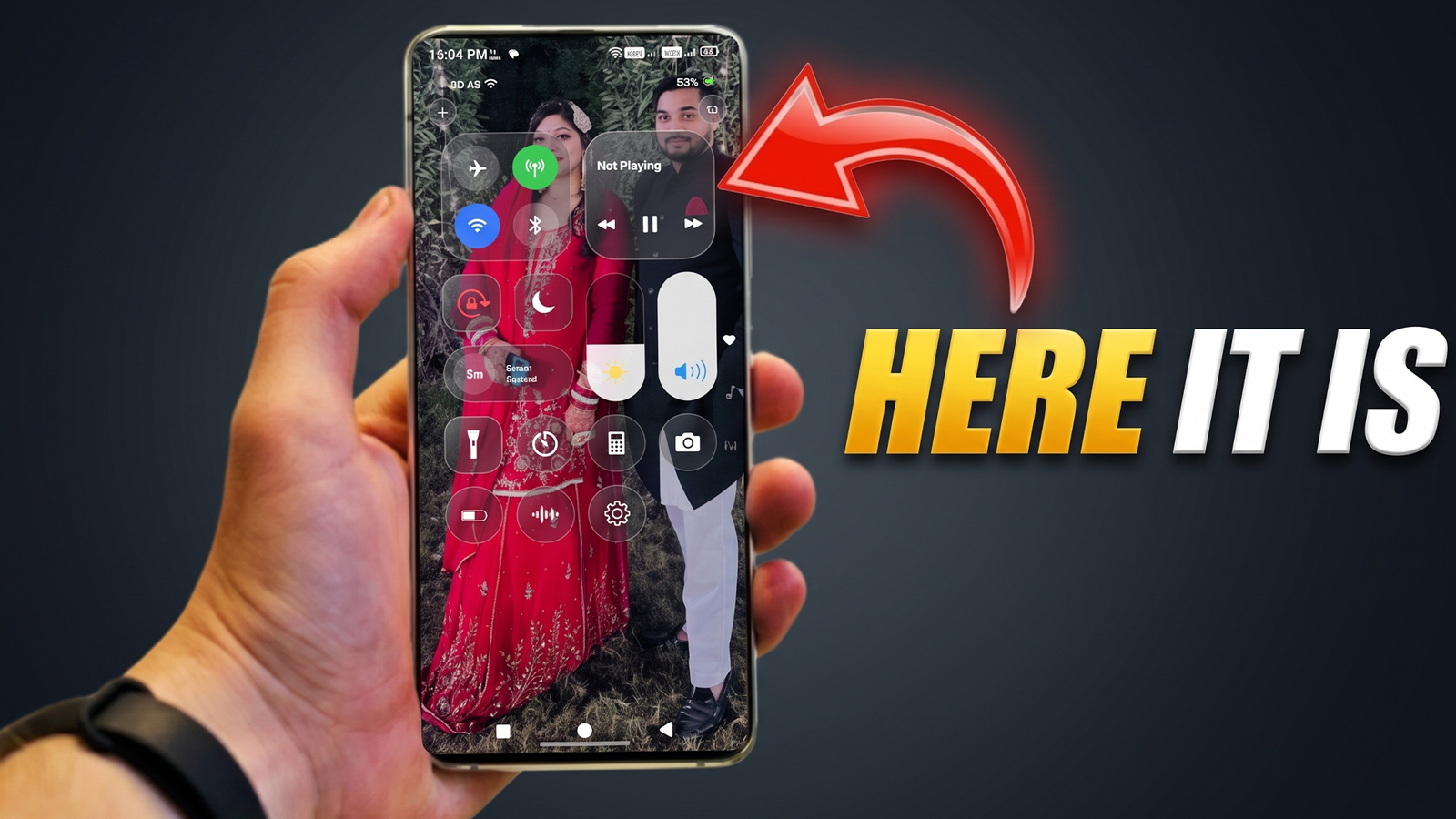
You can easily set your photo at notification bar setups using lightweight, modern overlay tools that mirror modern glassmorphism and iOS-inspired control centers. In this hands-on guide, you will learn the exact steps to place your favorite snapshot, travel memory, or custom wallpaper right behind your everyday toggles without breaking your operating system.
Why Personalize Your Notification Panel?
The notification shade is one of the most frequently visited areas of your smartphone. Think about how many times a day you adjust your screen brightness, toggle Wi-Fi, silence calls, or skip a track on Spotify. You interact with this panel dozens, if not hundreds, of times every day.
Customizing this space offers three distinct perks:
Instant Visual Refresh: Break away from stock manufacturer skins like One UI, MIUI, or clean Pixel layouts with a look that matches your aesthetic.
Better Layout Ergonomics: Modern control panels shift sliders and controls within thumb’s reach, making one-handed operation on tall screens much easier.
A True Personal Touch: Displaying a photo of your partner, pet, favorite anime visual, or minimal artwork gives your device an authentic personal identity.
What Tool Should You Use?
Stock Android does not natively support custom image backgrounds behind the notification drawer. To make this work safely, you need a specialized overlay utility.
An iOS-style Control Center panel is one of the cleanest choices for this task. Unlike heavy system modification apps, it functions as an accessible swipe overlay. It lets you pull in high-resolution backgrounds, add Gaussian blur effects, arrange quick toggles, manage media playback, and pick custom swipe positions—all without root access.
Step-by-Step Guide: How to Set Your Photo at Notification Bar
Setting this up takes less than five minutes. Follow these practical steps to place your image behind your toggles.
Step 1: Install Your Chosen Control Panel App
Head over to the Google Play Store and download a reliable swipe-based control center or quick settings customizer (such as Control Center – iOS Style or an equivalent notification customization tool).
Step 2: Grant the Essential Permissions
To display over your existing system tray and handle toggles properly, Android requires a few basic permissions:
Display Over Other Apps: This allows the custom panel to open smoothly over whatever app or game you are currently running.
Modify System Settings: Needed to let you adjust screen brightness and display timeouts directly via sliders.
Notification Access: Essential if you want the panel’s media player card to display current album art and song titles.
Privacy Note: Safe customization tools do not collect personal data. Avoid any app that asks for intrusive access to your contacts, SMS, or private files just to change a theme.
Open the application and locate the appearance or styling tab, typically labeled Customize, Colors, or Background.
Tap on Background Type.
Select Custom Image or Gallery Image (instead of standard solid or transparent modes).
Browse your storage and select the picture you want to display.
Step 4: Crop, Align, and Apply Blur
A common mistake users make is picking a busy photo that makes toggles impossible to read.
Crop Intelligently: Position the subject of your photo slightly off-center or toward the lower third where fewer switches sit.
Adjust Transparency & Blur: If your app supports background blur or dimming sliders, add a 15–25% dark tint or slight Gaussian blur. This keeps your Wi-Fi, Bluetooth, and volume sliders legible while keeping the picture clearly recognizable.
Step 5: Configure Your Trigger Edge
Finally, adjust where you swipe to open the panel:
Choose between the Top, Right, Left, or Bottom edge.
If you set it to the top edge, swiping down will replace your stock notification panel feel with your brand-new personalized photo drawer.
Adjust the trigger bar’s width and sensitivity so it never interferes with in-game swipes or everyday browsing.
Pro Tips to Make Your Custom Panel Look Professional
Setting up an image is simple, but making it look clean requires a little finesse:
Use High-Contrast Images: Darker backgrounds with punchy subjects work best. Pure white wallpapers often wash out text labels and white slider icons.
Organize Your Essential Controls: Keep your most-used tools at the top. Place your flashlight, calculator, and screen recorder within comfortable thumb reach.
Optimize Battery Consumption: Modern overlay panels sleep when inactive. However, make sure to disable aggressive battery optimization for the app in your device’s battery settings so Android doesn’t randomly kill the background service.
Understanding Permissions: Is It Safe for Your Phone?
Whenever an app requests permissions like “Display over other apps” or optional “Accessibility,” users naturally pause to consider security.
Here is why these permissions exist:
Display over other apps: Android separates apps strictly. For a utility to show your custom photo panel while you are inside Instagram, YouTube, or Chrome, it must draw on top of active windows.
Accessibility (Optional): Some users prefer mapping the custom shade to pull down notifications, open recent tasks, or lock the display. Android requires accessibility APIs for these specific system-level commands. If you only want basic media controls and toggles, you can leave Accessibility turned off.
Legitimate customization apps operate entirely on-device, running locally without uploading your gallery photos or personal details anywhere.
Frequently Asked Questions
Will setting a custom photo slow down my phone?
No. Lightweight overlay applications consume minimal RAM (typically under 40–60 MB) and use almost no CPU power when the drawer is closed. Your device’s speed will remain unaffected.
Does this require rooting my Android device?
Not at all. Everything works using standard Android display permissions and built-in interface overlays. You never need to unlock the bootloader or modify root system files.
Why doesn’t the Wi-Fi icon toggle off immediately when tapped?
On modern Android editions (Android 10 and newer), Google restricted third-party applications from directly changing network states for security reasons. Tapping the Wi-Fi or Bluetooth toggle will cleanly bring up your device’s native quick panel sheet, allowing you to complete the switch safely in one tap.
Can I change or remove the photo whenever I want?
Yes. Open the customization app at any time to crop a new picture, switch back to an ultra-clean frosted glass blur, or restore your factory appearance with a single tap.
Customizing your smartphone should not stop at your home screen wallpaper and icon packs. When you set your photo at notification bar panels, you turn a dull utility tray into a personalized, functional dashboard built specifically around your style. Pick a photo you love, spend two minutes adjusting your sliders, and enjoy a fresh mobile experience every single time you swipe down.