

Master Your Android Volume Controls: How to Unlock Louder, Clearer Audio
Have you ever cranked your phone up all the way, only to strain your ears trying to hear a podcast over city traffic?
It happens constantly. You unbox a brand-new smartphone, hit play on your favorite playlist, and realize your three-year-old budget phone was louder. Or maybe you plugged in a trusty pair of headphones, and the audio sounds completely muffled.
Before you throw your phone onto the couch in frustration or assume your hardware is defective, take a breath. In most cases, your hardware isn’t the problem at all. The real culprit is how modern mobile operating systems manage sound.
Learning how to navigate native Android volume controls—and knowing when to use trusted amplifier tools—puts you back in the driver’s seat. Here is everything you need to know to take control of your audio, bypass artificial limits safely, and get the punchy volume your media deserves.
Why Is Android Volume So Low by Default?
Smartphone makers walk a tightrope. They have to protect your hearing, comply with regional safety standards, and prevent cheap internal speakers from blowing out. Because of this, stock settings err on the side of caution.
Here are the main reasons your audio feels underpowered:
Regional Volume Cappings: In regions like the European Union, devices come programmed with mandatory decibel limits for headphones.
Aggressive Equalizer Presets: Factory sound profiles often flatten dynamic range to prevent distortion at higher outputs.
Bluetooth Absolute Volume Sync: When your phone and Bluetooth earbuds try to manage volume simultaneously, they often desync, capping your audio far below 100%.
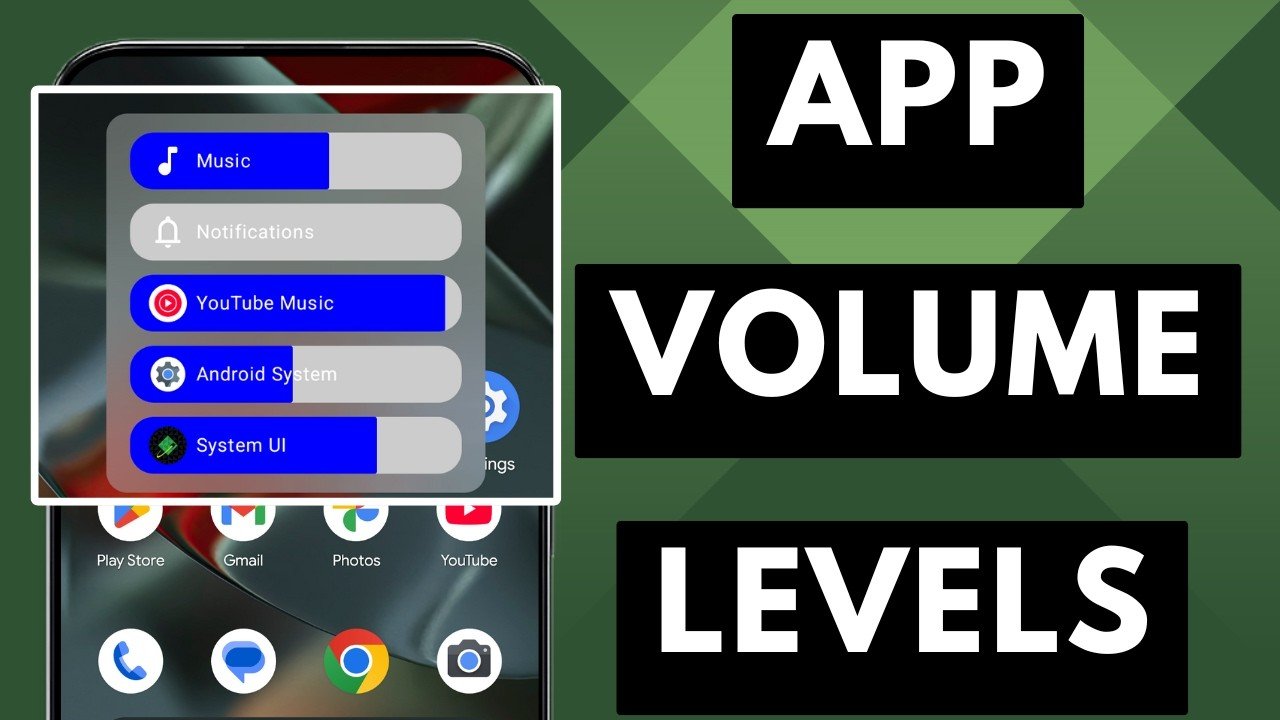
Independent Audio Streams: Android separates media, alarms, notifications, and call volume. Turning up a ringing phone doesn’t automatically mean your YouTube video will play loudly.
Mastering Built-In Android Volume Controls
Before downloading third-party tools, explore the native options hiding right in your phone’s settings menu.
1. Expand the Volume Panel
Pressing the physical volume rocker adjusts whichever sound channel is active at that moment. If a video is playing, it adjusts media; if you’re idle, it often tweaks notifications.
To view every stream at once:
Tap the physical Volume Up or Volume Down key.
Tap the three dots (…) or the slider icon at the top or bottom of the on-screen volume bar.
Manually adjust the independent sliders for Media, Call, Ring/Notification, and Alarm.
2. Disable Absolute Volume (Developer Options)
If your Bluetooth headphones sound abnormally quiet, your phone might be restricting power output over the wireless link. Disabling Absolute Volume gives your headphones independent control.
Go to Settings > About Phone.
Tap Build Number 7 times until you unlock Developer Options.
Head back to Settings > System > Developer Options.
Scroll down to the Networking section and toggle on Disable Absolute Volume.
Restart your device and reconnect your headphones.
3. Check Sound Quality and Effects Settings
Many modern phones (especially Samsung, Xiaomi, and Motorola models) feature built-in audio enhancers like Dolby Atmos or custom equalizers.
Open Settings > Sound & Vibration > Sound Quality & Effects.
Turn on Dolby Atmos (or your manufacturer’s equivalent) and switch the preset to Movie or Vocal Boost. This immediately lifts dialogue and mid-range frequencies.
When Stock Isn’t Enough: Using a Dedicated Volume Booster
Native settings only take you as far as the manufacturer allows. When you are listening in noisy environments, watching quiet audio mixes on YouTube, or using high-impedance headphones that demand more power, stock levels fall short.
This is where a specialized utility like Volume+: Volume Booster & Sound Amplifier comes into play. It pushes your audio output beyond the stock operating system boundaries without requiring complex root access.
Standout Features That Solve Common Audio Frustrations
Precision Slider Control: Don’t settle for jarring jumps in sound. A smooth boost slider lets you dial in the exact amplification level that balances loudness with acoustic clarity.
Instant Boost Shortcuts: Jump directly to 125%, 150%, 175%, or maximum output with a single tap when background noise suddenly spikes.
Built-In Media Controller: View song titles, pause, resume, or skip tracks directly inside the booster interface across platforms like Spotify, YouTube, and local media players.
Notification Quick-Toggle: Switch the amplifier on or off right from your pull-down notification shade, avoiding the hassle of constantly reopening the app.
Universal Output Compatibility: Works seamlessly across internal stereo speakers, auxiliary wired connections, external Bluetooth soundbars, and wireless earbuds.
How to Use an Amplifier Without Damaging Your Hardware
Amplifying sound beyond system limits requires common sense. Pushing a tiny micro-speaker past its physical limits will eventually cause hardware degradation.
Step-by-Step Increases: Never open an app and slide straight to 200%. Start at 110%, check clarity, and work upward gradually.
Listen for Clipping: If music starts sounding scratchy, muffled, or buzzy, you have hit the ceiling of what your speaker diaphragm can physically handle. Pull the boost down a notch.
Protect Your Hearing: Ear canals are sensitive. Keep headphone levels within comfortable listening ranges, reserving higher boost levels for quiet videos or noisy external rooms.
Troubleshooting Common Sound Bugs on Android
If you adjusted your settings and the sound remains faint, run through this quick hardware and software checklist:
Clean the Speaker Grilles: Pocket lint, dust, and earwax build-up account for a huge percentage of low-volume complaints. Gently clean your speaker mesh with a soft, dry toothbrush or wooden toothpick.
Check Accessibility Audio Balances: Navigate to Settings > Accessibility > Audio. Ensure the left/right balance slider sits squarely in the center. An accidental shift can silence half your stereo sound.
Inspect Battery Saver Restrictions: Extreme power-saving modes occasionally restrict the digital audio converter (DAC) from drawing full power. Test your audio with Battery Saver switched off.
The Verdict
You don’t need to put up with barely audible calls, muffled podcasts, or weak video sound. Getting the most out of your mobile audio comes down to a simple formula: clean up your native Android volume controls, unlock your Bluetooth settings, and rely on a dependable booster app when you need that extra punch.
Take a few minutes to configure your device today, and give your ears the rich, full-bodied sound experience they’ve been missing.
Frequently Asked Questions (FAQ)
Can using a volume booster app damage my phone speakers?
Yes, if misused. Driving speakers at maximum volume for extended periods can cause distortion, blow out small speaker cones, or shorten hardware lifespan. Always boost volume incrementally and back off if you hear audio clipping or buzzing.
Why did my phone volume suddenly get lower after an update?
System updates often reset audio permissions, re-enable EU hearing protection limits, or reset custom equalizer settings to default. After an update, verify your media sliders in settings and re-check Developer Options if using Bluetooth gear.
Do I need to root my phone to boost the volume?
No. Modern volume booster apps run effectively using standard Android audio routing APIs, allowing you to amplify sound across all your media apps without modifying system firmware or voiding your warranty.