

How to Set Video Ringtone on Android: Easy Step-by-Step Guide
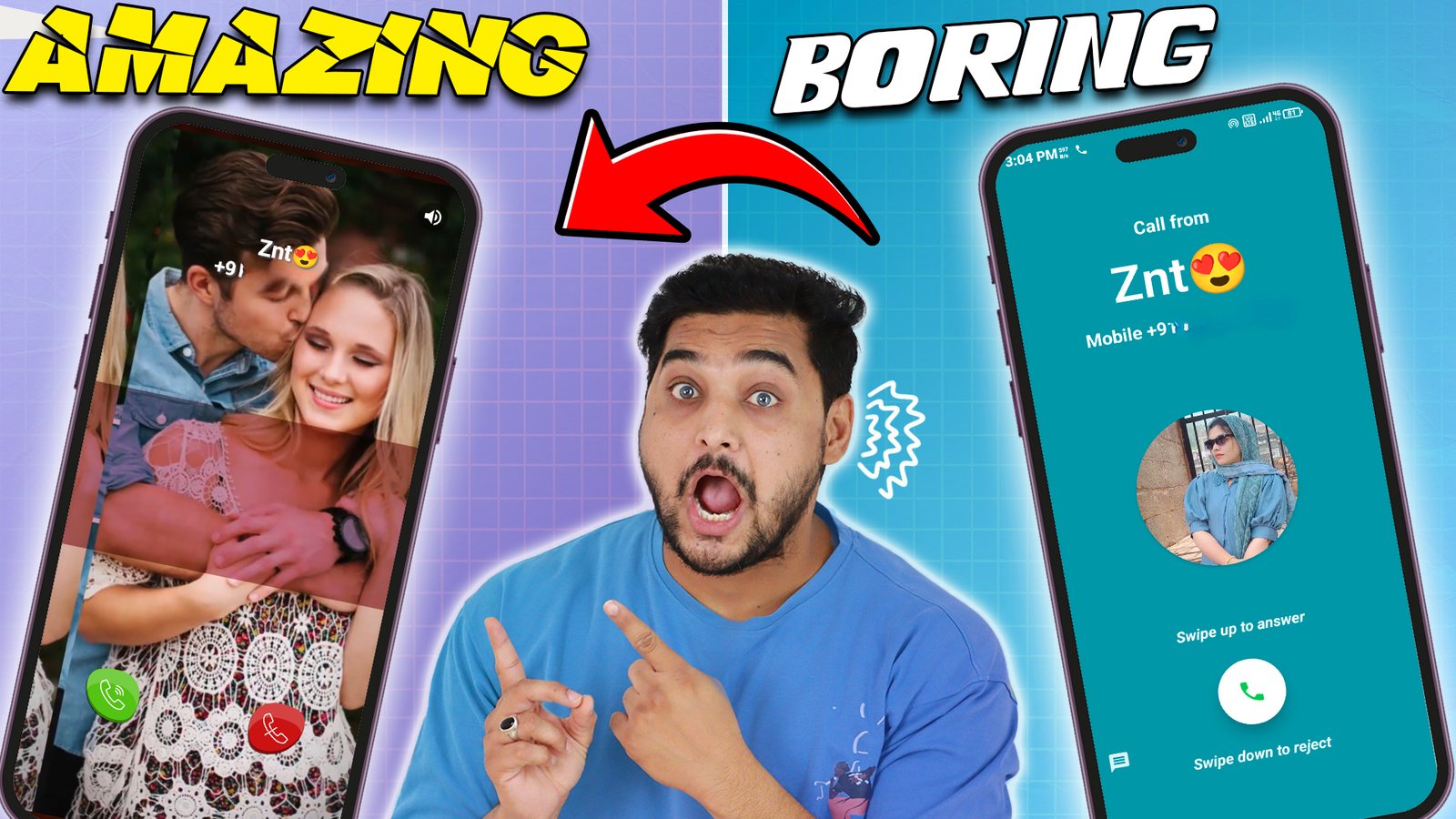
Ever looked at your phone screen while it was ringing and felt completely bored?
A flat background, a tiny contact thumbnail, and the same old default tune you’ve heard a hundred times. For years, incoming calls have looked practically identical across every smartphone. But your phone is personal, and the screen you look at dozens of times a day shouldn’t feel like a factory setting.
Setting up a video ringtone replaces that plain screen with dynamic, full-screen playback whenever someone dials your number. Whether you want a favorite romantic clip, high-energy animation, or a memory from your gallery, turning incoming alerts into video is surprisingly easy.
If you are wondering video ringtone set, this guide walks you through the entire process, including built-in phone settings, top customization apps, and essential battery optimization tips.
What Exactly Is a Video Ringtone?
A video ringtone is an incoming call screen that plays an MP4 video clip alongside accompanying audio instead of just playing an MP3 sound over a static wallpaper.
When your phone detects an incoming cellular or VoIP call, the software brings up a customized full-screen display. You get:
Synchronized audio and visuals: The video audio replaces or merges with your standard call alert sound.
Full-screen playback: No cropped borders or small circular profile pictures.
Custom call buttons: Dynamic call-accept and call-reject sliders styled to match your video aesthetic.
Contact-specific themes: Different videos assigned to family members, partners, or friends.
Method 1: Setting a Video Ringtone Using Built-In Android Settings
Some smartphone brands—most notably Samsung Galaxy devices running One UI—have built-in support for video ringtones right inside the native Phone app. If you own a compatible device, you do not need third-party software.
How to Do It on Samsung Galaxy Phones:
Open the Phone app.
Tap the three vertical dots in the top right corner and select Settings.
Tap Call Background.
Choose Background at the bottom of the screen.
Tap the + (plus) sign in the top right corner.
Select Select from Gallery and pick your desired video.
Use the trim tool if your clip is longer than 15 seconds (Samsung limits call background clips to a maximum of 15 seconds).
Toggle Use video sound as ringtone if you want the clip’s actual audio track to ring out.
Tap Set as call background.
If your device manufacturer doesn’t provide this feature out of the box, you can turn to dedicated third-party apps to get identical or even better results.
Method 2: How to Set Video Ringtone Using a Third-Party App
For Xiaomi, Realme, Vivo, Oppo, OnePlus, or Motorola devices without native call video features, dedicated apps fill the gap seamlessly. Popular options like the Love Video Ringtone for Incoming Call app provide plug-and-play templates along with custom gallery uploads.
If you are searching online for practical steps on video ringtone set, follow this universal workflow:
Step 1: Download and Install a Verified App
Head over to the Google Play Store. Search for a reputable caller theme utility such as Love Video Ringtone for Incoming Call or Vyng Video Ringtones. Install the application and launch it.
Step 2: Grant Mandatory System Permissions
A video caller app needs system-level access to draw over other apps when your phone rings. When prompted, make sure to grant:
Phone / Call Management Permission: Enables the app to detect incoming calls.
Display Over Other Apps (Overlay Permission): Allows the video to appear over your locked or active home screen.
Storage / Media Access: Lets you pick personal videos directly from your local phone gallery.
Default Phone App (Optional on some devices): Ensures the custom interface replaces the stock dialer screen cleanly.
Step 3: Pick or Upload Your Video
Open the app’s dashboard. You typically have two options:
In-App Library: Browse curated categories (Romantic, Retro, Abstract, Nature, or Bollywood themes).
Device Gallery: Select a pre-recorded vertical video, short reel, or video edit saved on your local storage.
Step 4: Customize the Call Elements
A good video ringtone app lets you tweak individual screen assets:
Call Buttons: Choose from classic iOS sliders, circular Android buttons, or neon glow designs.
Audio Track: Keep the native video sound, or mute the clip and pair it with a separate romantic MP3 tone.
Background Blurs: Add slight gradients or vignettes to keep caller ID numbers legible.
Step 5: Preview and Apply
Tap the Preview button to see exactly how your incoming call will appear in real-time. If the framing looks sharp, hit Set as Caller Theme or toggle the Enable Video Ringtone switch.
Key Features to Look for in a Video Ringtone App
Not all caller theme apps offer the same stability. To avoid crashes and sluggish performance, look for apps that include these essential features:
Simple On/Off Master Toggle: You should be able to disable the video ringtone instantly whenever you need a distraction-free workday.
Aspect Ratio Optimization: The app should automatically handle 9:16 vertical videos without stretching or warping widescreen files.
Selective Contact Assignment: Setting a sweet romantic video for your significant other while keeping a simple tone for your manager or delivery drivers.
Built-In Video Trimmer: Quick tools to snip out your favorite 10–20 seconds of a song without using an external video editor.
Pro Tips: Keeping Your Phone Smooth and Battery-Friendly
Because video ringtones load graphic assets the moment a network call hits your device, keep these performance tips in mind:
1. Lock the App in Recent Tasks
Aggressive RAM management on devices like MIUI, ColorOS, and FunTouch OS tends to kill background apps. Open your recent apps drawer, hold down on the video ringtone app, and tap the Lock icon. This prevents the OS from clearing it from background memory.
2. Disable Battery Optimization
Go to Settings > Apps > [Your Video Ringtone App] > Battery > Unrestricted. This step guarantees your custom screen shows up immediately without a 2-second lag when someone calls.
3. Keep Video Files Lightweight
Avoid using massive 4K raw video files directly recorded from your camera. A compressed 1080p vertical MP4 under 15–20 MB loads instantly, consumes minimal memory, and barely impacts your daily battery life.
Frequently Asked Questions
Does setting a video ringtone drain my phone battery fast?
No. The video only plays for a few seconds while an incoming call rings. It does not run continuously in the background or consume battery during normal phone usage.
Can I set different video ringtones for specific contacts?
Yes. Most modern video ringtone apps allow you to choose whether a selected video applies globally to all incoming calls or strictly to individual numbers in your address book.
What should I do if the video ringtone doesn’t show on incoming calls?
This almost always comes down to missing permissions. Go into your device settings, locate the app, and confirm that both Appear on top / Display pop-up window and Autostart permissions are toggled on.
Yes. Any standard vertical MP4 format file saved in your phone’s gallery works seamlessly as long as it is trimmed down to a reasonable ring duration.
Upgrading your incoming call screen takes less than five minutes, and the visual payoff is immediate. Whether you configure it through native Samsung settings or install a dedicated romantic caller theme app, you no longer have to settle for a dull phone screen. Pick a video you genuinely enjoy, test your permissions, and make every incoming call something you actually look forward to answering.